· 4 min read
How do I add sections and positions to a BOQ?
Build the hierarchy — sections group the work, positions are the priced line items inside them.
A BOQ is built as sections that group the work, containing positions — the actual priced line items.
Add a section
- Click “Add section” (or “Add sub-section” on an existing section, to nest one inside it — Superstructure can contain Concrete Works as a sub-section, for example).
- Enter a Section name and click “Add.”
Add a position
- Inside a section, click “Add position.”
- Fill in the fields: Description, Quantity, Unit (for example “m³”), and Unit rate.
- If your organization has reusable assemblies set up, you can pick one from “From assembly (optional)” instead of typing a rate by hand — it fills in the unit rate from the assembly's rolled-up labor, material, and equipment cost.
- Click “Add.”
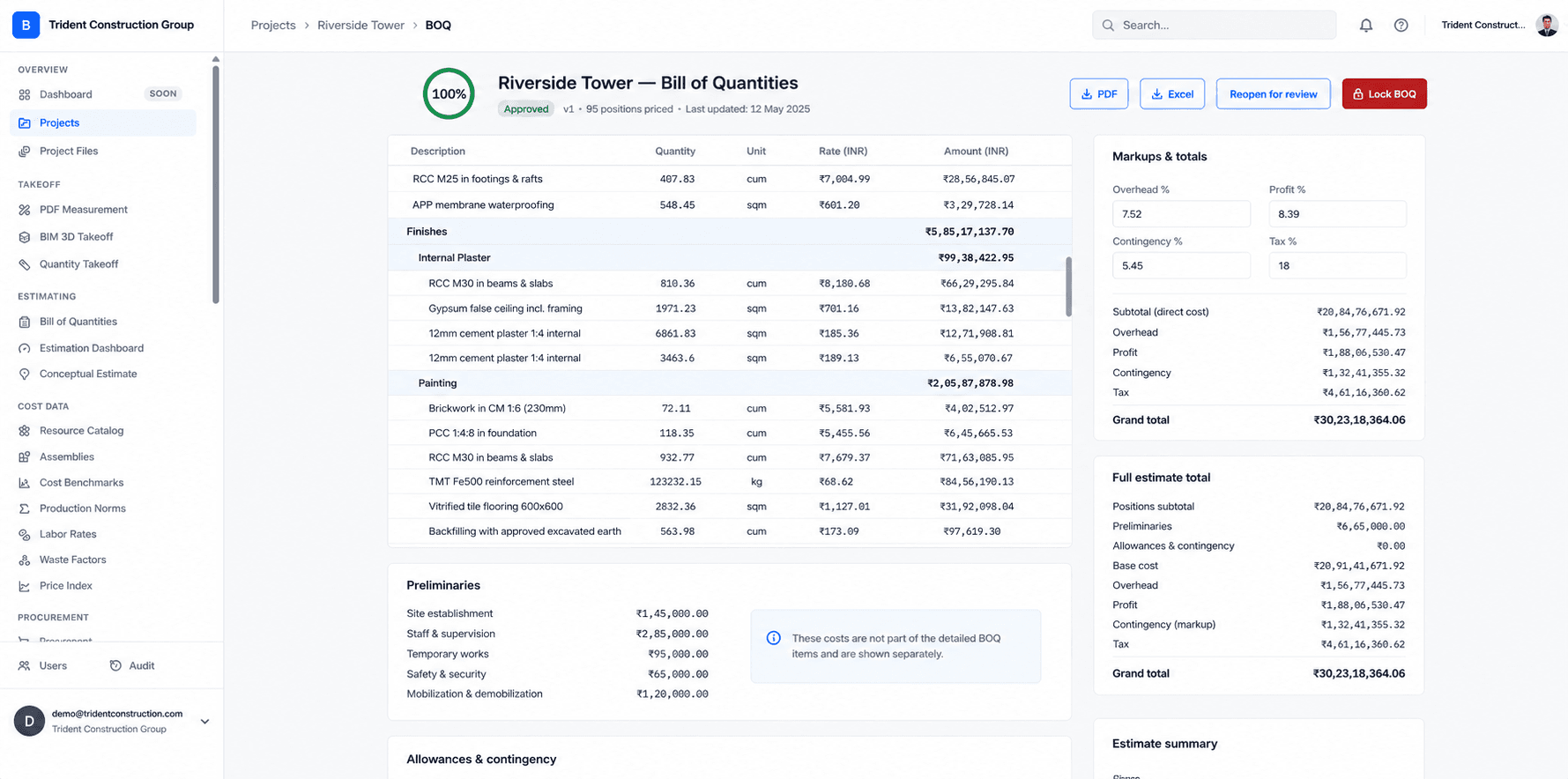
Position and section totals roll up automatically as you add items — the section subtotal you see is always the live sum of its positions, not something you calculate and re-enter.
Editable only while draft or in review
Sections, positions, and markups can only be changed while the BOQ is in draft or in review status. Once it's approved or locked, the fields become read-only — see how the approval lifecycle works.
Was this article helpful?