· 4 min read
How do I measure quantities on a PDF drawing?
Upload a drawing, calibrate its scale, measure with the Length, Area, or Count tools, and send the results into a BOQ.
PDF Measurements lets you measure quantities directly on an uploaded drawing — no separate takeoff software, and no re-typing what you measured into a spreadsheet.
Upload the drawing
- Open your project's Takeoff → PDF Measurements view.
- Click “Upload PDF” and choose a drawing (PDF only). It opens straight into the measurement view once it's uploaded.
Calibrate the page's scale first
A drawing's pixels don't mean anything on their own — Buildiante needs to know what real-world distance they represent before a measurement means anything.
- Click “Calibrate scale.”
- Click two points on the drawing whose real-world distance you know — the two ends of a printed dimension line is the usual choice.
- In the “Calibrate scale” dialog, enter that Distance and its Unit, then click “Set scale.”
The page header shows “Scale set: …” once it's calibrated, or “No scale calibrated on this page yet” if you skip this step — every page in a multi-page drawing needs its own scale.
Measure
Three tools cover most takeoff work:
- Length — click two or more points along a run (a wall, a pipe run).
- Area — click three or more points around a boundary (a slab, a room).
- Count — click once per item (fixtures, columns, doors).
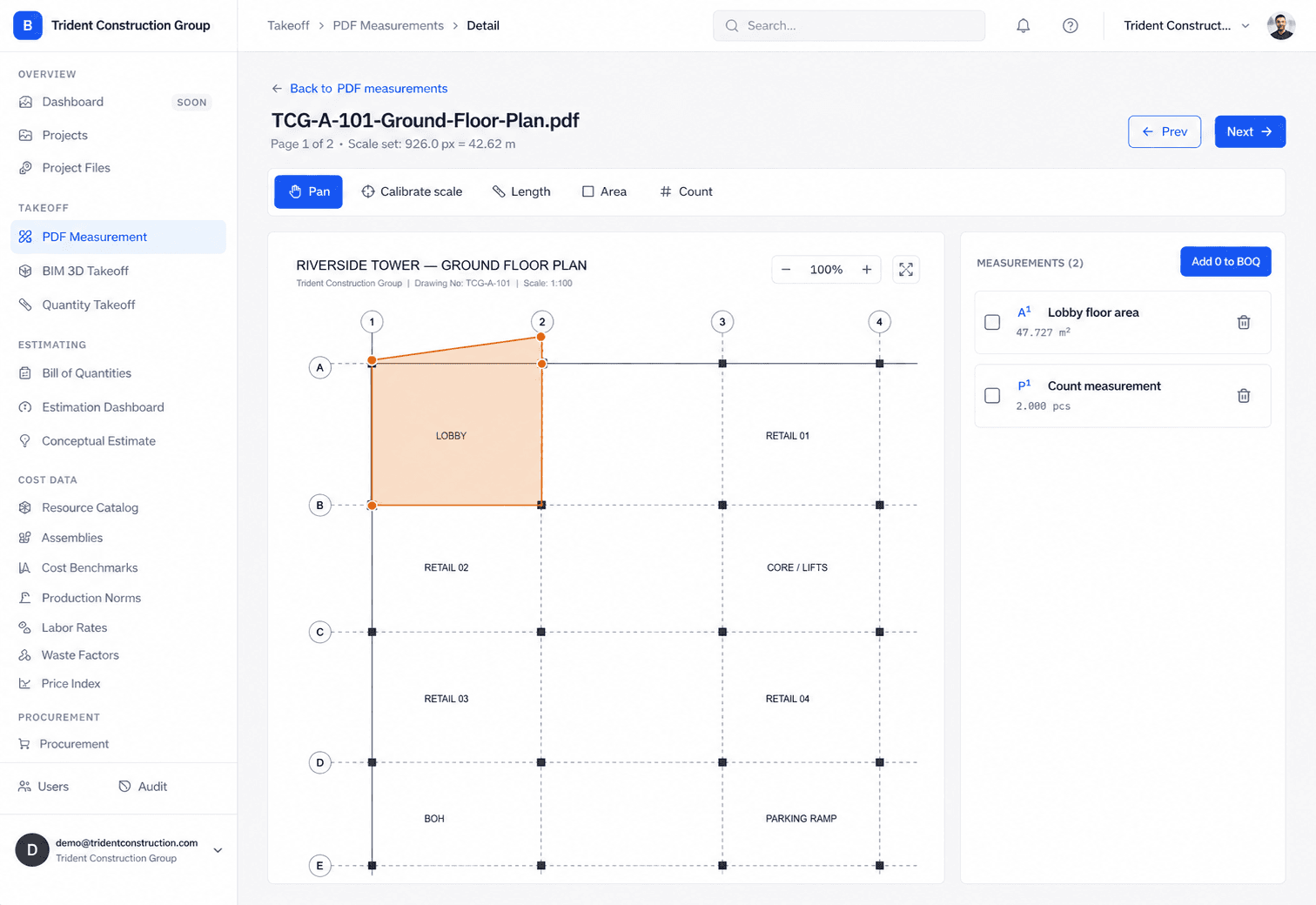
After you click your points, an inline bar appears with an optional Label field — name it something you'll recognize later (e.g. “Ground floor slab”), then click “Finish.” Repeat for as many measurements as you need; each one appears in the list on the right with its computed value and unit.
Send measurements into a BOQ
- Select the measurements you want using the checkbox next to each one — a measurement already sent to a BOQ shows “· linked” and can't be selected again.
- Click “Add to BOQ”, choose the target BOQ and section, and confirm.
Each measurement becomes its own BOQ position — Buildiante never silently sums several measurements into one line, so every position on the BOQ can still be traced back to a specific measurement on the drawing. See how measured quantities stay accurate for what happens if you recalibrate a page after measurements are already linked, and adding sections and positions for what to do with a position once it's in the BOQ.
Was this article helpful?